
Two interviews.
A prototype to review.
Follow the Harbor research interviews from project review problems to a prototype, with a next step assigned to Maya.
Free to use · Private by design
Transcribe, summarize, and build knowledge from your recordings.
Your recordings and notes stay on your computer. No subscription.
Free to use No subscription Early preview

What you can do
Read the transcript, check the notes, and export the result. Use Memory and MCP when you need to work across recordings.
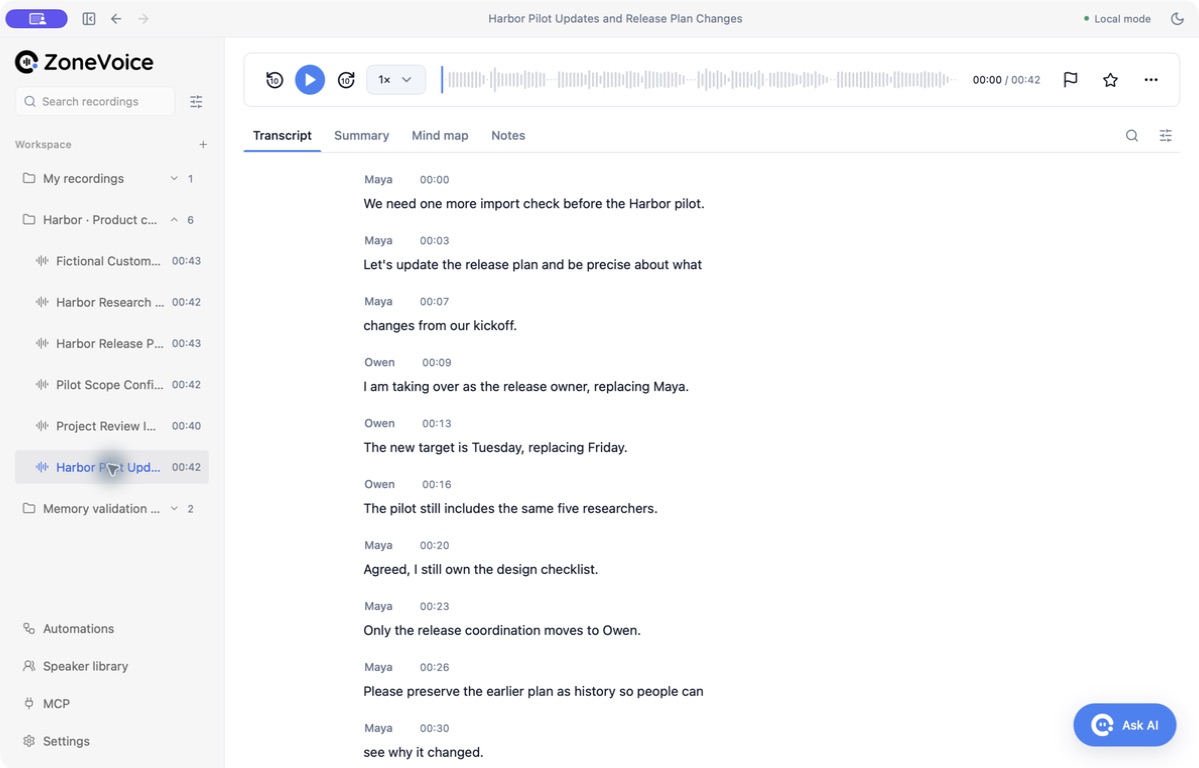
Import audio or video. Get a transcript with timestamps.
Separate speakers, review their labels, and assign names.
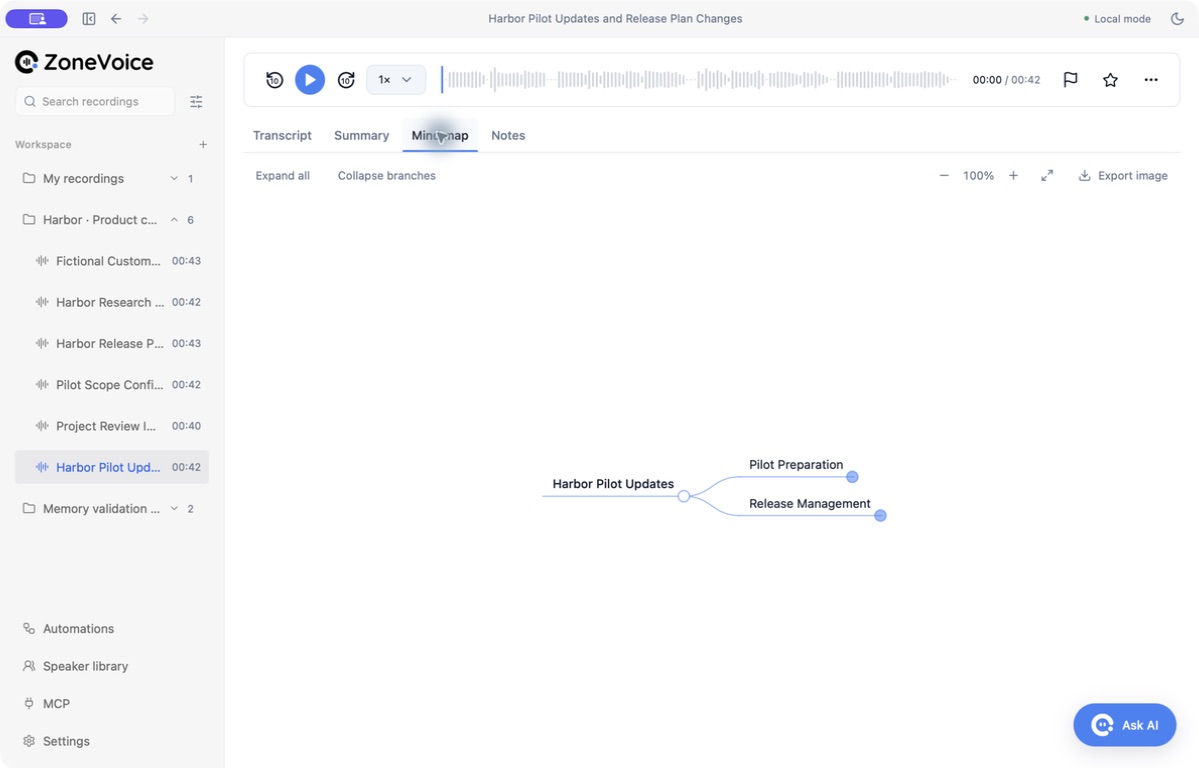
Generate key points, action items, chapters, and mind maps.
Review facts from multiple recordings and track what changed.
Save notes, transcripts, and subtitles as files you can reuse.
Let an AI client search saved text in approved workspaces.
01 / Private AI transcription
Import a meeting, interview, or voice memo. Transcription runs on your computer, with the recording available for playback.
02 / Summarize & organize
Generate meeting notes from the transcript. Review the output alongside the source before sharing it.
03 / Meeting knowledge · Preview
Select recordings in a workspace to extract facts. Review new information, keep earlier decisions in History, and ask questions with transcript evidence.
Preview limit: 20 selected recordings and 60 facts per workspace.
Build a meeting knowledge base across recordings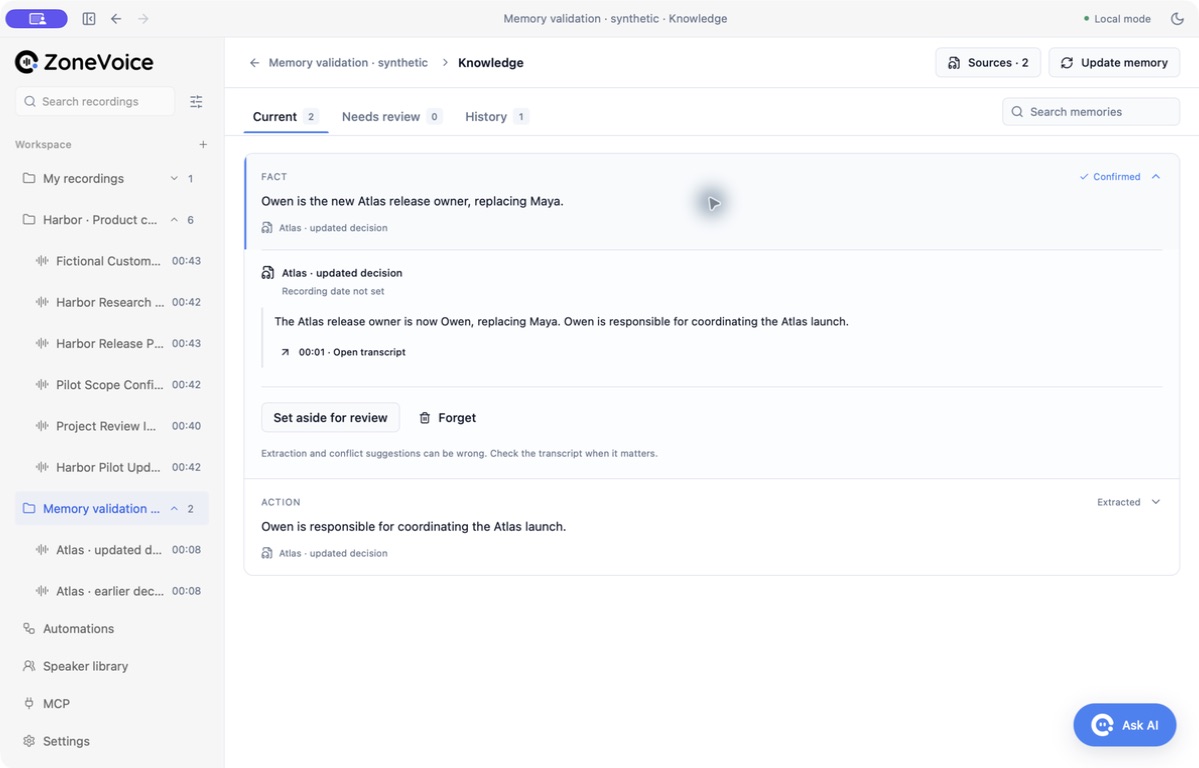
Keep a copy
Use your notes in a document, add subtitles to a video, or keep structured data for another tool.
04 / MCP
Connect a compatible AI client to read saved notes and transcripts through the local MCP server.
MCP shares saved text, not raw audio or structured Memory. External clients may send that text to their model provider.
See MCP tools and access controls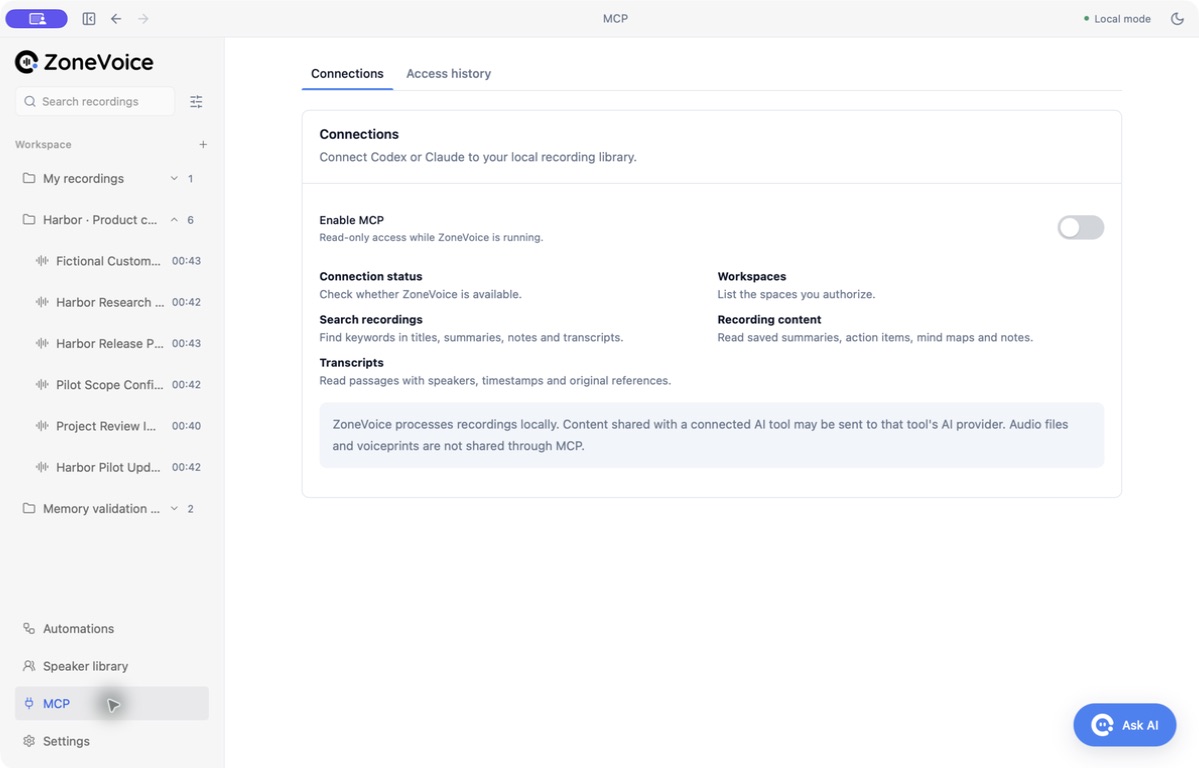
Local processing
Once the required models are installed, transcription, speaker processing, and summaries run on your computer. Recordings and generated results stay in your local workspace.
Connecting an external AI client through MCP is optional and has a separate data boundary.
See where your data goes at each stepNo automatic cloud fallback.
Try the examples
Listen to the interviews and follow-ups. Compare the transcripts, summaries, and next steps.
Follow the Harbor research interviews from project review problems to a prototype, with a next step assigned to Maya.
Compare the kickoff and update. Check who owns the release and which date the team agreed to.
Review the customer’s requirements and the follow-up that narrows the pilot to what the team will deliver.
The price is simple
Free local transcription, speaker labels, summaries, tasks, and mind maps.
No subscription. No per-minute fees. No paid feature tier.
A few details
The desktop app runs transcription, speaker separation, voiceprint matching, and summaries locally. There is no automatic cloud fallback for processing your recordings.
Yes. ZoneVoice is free software to use, with no subscription, per-minute charges, or paid feature tier. It is currently in early preview, so access is by invitation while we refine the desktop experience.
ZoneVoice separates speakers and collects candidate voices in a local library. You confirm who a voice belongs to. Later recordings can suggest or match known speakers, and your manual corrections take priority.
Yes, as a desktop preview. Select up to 20 completed recordings per workspace to extract up to 60 facts, review changes, preserve history, and ask questions with transcript evidence. MCP reads saved notes and transcripts; Memory facts and history are available inside ZoneVoice.
Export your notes, transcripts, subtitles, and structured data as Markdown, text, SRT, or JSON. Your source recordings remain in your local workspace.
The free desktop preview is available for macOS and Windows by invitation. Join the waitlist with your email, and we’ll notify you when an invitation is available.
ZoneVoice desktop